A few months ago my phone told me storage was almost full. I had not installed anything new in weeks. When I dug into the settings I found the real problem. A handful of apps were sitting on gigabytes of cached files they had quietly built up over time.
Cache is not dangerous. It is just clutter that grows and grows. The good news is that clearing it is safe and takes about two minutes per app. You will not lose your photos. You will not lose your chats. You will not get logged out of anything.
Quick answer: Open Settings and go to Apps. Pick the app and tap Storage and cache. Then tap Clear cache. That is all. Never tap Clear storage unless you want the app reset to a fresh install. Do the same inside Chrome from its own settings to clear the browser cache.
What cache actually is
Every app keeps a small stash of temporary files. A social app saves images you already scrolled past so they load fast next time. A maps app saves bits of the map you viewed yesterday. A browser saves pieces of websites you visit often.
This is cache. It exists to make the app feel quick.
The problem is that the stash never stops growing. Apps rarely clean up after themselves. Over a year or two the stash across all your apps can reach several gigabytes. On a phone with 64 GB of storage that hurts. It also explains why your phone says storage is full when you barely added anything.
Cache files are meant to be temporary. Android can delete them without asking and the app simply rebuilds what it needs. That is why clearing cache is the safest cleanup you can do on a phone.
Cache vs app data: the one thing you must not mix up
On the same settings screen you will see two buttons. They sit right next to each other and they do very different things.
Clear cache removes temporary files only. Your accounts stay signed in. Your settings stay as they are. Your saved posts and downloads stay put. The app might open a touch slower the first time after clearing because it rebuilds the stash. That is normal.
Clear storage (called Clear data on some phones) wipes the whole app. It signs you out. It deletes settings and anything saved inside the app. The app goes back to the state it was in on install day.
People get into trouble when they tap the wrong one. I have done it myself with a banking app and had to set everything up again. So read the button twice before you tap. For this guide you only ever need Clear cache.
How to clear cache for one app
These steps work on most Android phones. Samsung owners will find one small difference noted below.
- Open Settings.
- Tap Apps, then See all apps if the list looks short.
- Find the app you want to clean and tap it. Social apps, browsers and video apps usually hold the most cache.
- Tap Storage and cache.
- Tap Clear cache.
The cache number on that screen drops to zero or close to it. Done.
On a Samsung Galaxy the path is almost the same. Go to Settings and tap Apps. Pick the app and tap Storage. Then tap Clear cache at the bottom. Samsung just skips the words “and cache” on the middle screen.
A useful trick before you start: sort the app list by size. In the Apps list tap the filter or sort option and choose size. Now the worst offenders sit at the top and you can work down the list in a few minutes.
How to clear the Chrome cache
Chrome keeps its own cache and it can be one of the biggest on the phone. You clear it from inside Chrome, not from the app list.
- Open Chrome and tap the three dots at the top right.
- Tap Settings.
- Tap Privacy and security.
- Tap Delete browsing data.
- Tick Cached images and files only. Leave history and cookies unticked unless you want those gone too.
- Set the time range to All time and tap Delete data.
Ticking cached images and files only is the part that matters. You stay signed in to every site. Your history stays. Only the stored website clutter goes away.
Other browsers work the same way in spirit. Look in the browser settings for privacy or data options and find the cache entry.
Why there is no “clear all cache” button anymore
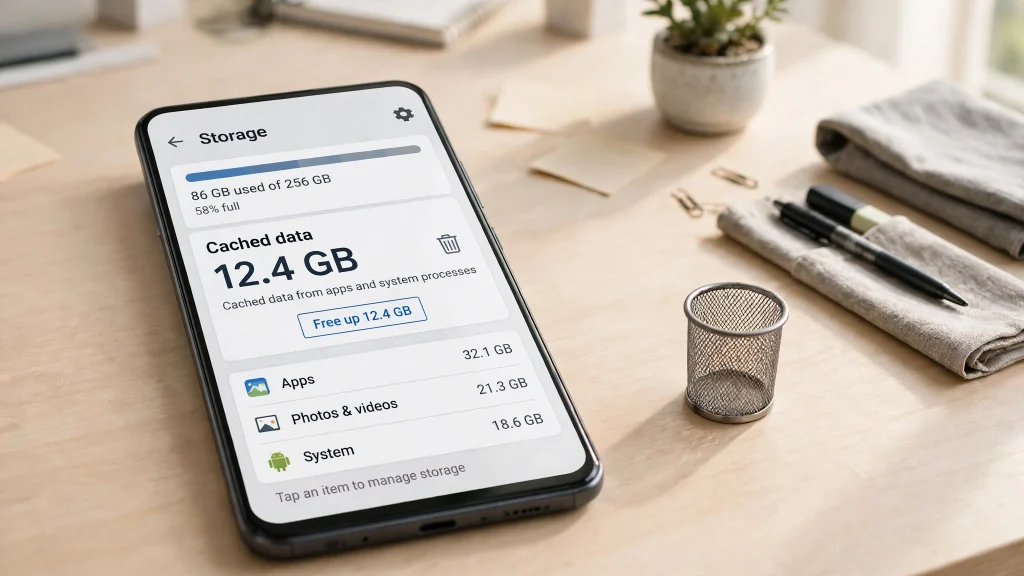
If you used Android years ago you may remember a single button that cleared every app cache at once. It sat under Settings and Storage as “Cached data”. Tap it and the whole phone got cleaned in one go.
Google removed that shortcut from stock Android a while ago and most brands followed. So if you cannot find it on your phone, nothing is broken. It is simply gone.
The modern way is per app, the way this guide shows. It takes a little longer. The upside is control. You clean the apps that need it and leave the rest alone.
Samsung owners get one shortcut. Open Settings and tap Battery and device care. Tap Storage to see what is eating space, or tap Optimise now on the main Device care screen for a general tidy up. It is not a full cache wipe, but it helps.
When clearing cache actually helps
Clearing cache is worth doing in three situations.
Your storage is tight. If your phone warns about low space, cache is the first place to look because it costs you nothing to clear. Our full guide on how to free up space on Android covers the bigger cleanups after this one.
An app is misbehaving. An app that freezes, crashes on opening or shows old content often has a corrupt file sitting in its cache. Clearing the cache forces the app to rebuild clean copies. This fixes more app glitches than people expect.
An app shows stale content. A shopping app showing an old price or a social app stuck on yesterday’s feed is usually reading from cache. Clear it and the app has to fetch fresh data.
And here is when it does not help. Clearing cache will not fix a slow phone caused by a nearly full drive on its own. It will not fix a worn battery. It will not make an old phone feel new. It is one honest cleanup, not magic.
If an app still misbehaves after a cache clear, the next step is often to reinstall it or go back to a version that worked. We covered that in our guide on how to download an older version of an app on Android.
How much space will you actually get back?
It depends entirely on which apps you use. A phone full of social apps, browsers and video apps can be carrying several gigabytes of cache without you realising. A phone used mostly for calls and messages will have far less.
The biggest stashes are predictable. Chrome and other browsers sit near the top. So do YouTube, TikTok, Instagram and Facebook, because all of them store images and video as you scroll. Music apps build cache too when they keep songs ready for quick play.
Do not expect the full amount back forever. The apps start rebuilding the moment you open them again, and that is fine. The point of the cleanup is not to reach zero. It is to knock the stash back down when it has grown for a year and your storage is tight. Think of it as emptying a bin. The bin fills again, just slowly.
One honest warning. If you clear cache and the free space barely moves, cache was never your problem. Your space is going on photos, videos and downloads instead. That is a different cleanup, and guessing wrong is why people clear cache three times and give up.
How often should you clear cache?
There is no schedule you need to follow. Android manages cache on its own day to day and most people never need to touch it.
My own habit is simple. I clear the cache of my three or four biggest apps when storage warnings show up, or when an app starts acting strange. For most people that means a small cleanup every few months. Doing it every day is wasted effort because the cache just rebuilds. Some of it rebuilds within minutes for apps like YouTube or Spotify. That is by design, not a fault.
Skip the third party cleaner apps while you are at it. The Play Store is full of apps promising one tap speed boosts. Most of them just clear cache the same way you did here, wrapped in ads. Some ask for permissions they have no business asking for. The built in settings do the job for free. If you want help spotting big files instead, Files by Google is the one app worth having because it shows you what is large rather than promising miracles.
One last note. On a few system apps the Clear cache button is greyed out. That is deliberate. Android protects the cache of core apps like Settings and Phone because clearing them can cause odd behaviour. Leave those alone.
Frequently asked questions
Does clearing cache delete my photos or messages?
No. Cache is temporary working files only. Your photos, videos, chats and files are app data, and Clear cache does not touch them. Only the Clear storage button wipes data, and this guide never asks you to tap it.
Will clearing cache log me out of apps?
No. Login details are stored as app data, not cache. You stay signed in everywhere. The only difference you may notice is that images and feeds load a little slower the first time you open the app afterwards.
Why does the cache fill up again so fast?
Because that is its job. Apps rebuild the stash as you use them so things load quickly. A cache that grows back is healthy. It only becomes a problem when it grows for months on a phone that is short on space.
My Clear cache button is greyed out. What now?
That happens on some protected system apps and on apps with zero cache. If the cache shows 0 B there is nothing to clear. For a normal app that will not clear, restart the phone and try again. Never use Clear storage as a substitute unless you accept the app resetting.
Is it safe to clear cache on every app?
Yes, it is safe. The worst case is apps feeling slightly slower on first open while they rebuild. The reason not to do all of them is time, not risk. Start with the biggest apps by size and stop when you have freed enough space.
The bottom line
Cache is useful clutter that never stops growing. Clearing it is the safest cleanup on Android because it deletes nothing you created and signs you out of nothing. Work through your biggest apps from Settings, clear Chrome from its own menu, and leave the Clear storage button alone. Two minutes per app, a few times a year, and the storage warnings stay away.