Last month an update landed on the photo editor I use every day. The button I used most was gone. In its place sat a bright new menu I never asked for. Two days later the app started closing itself in the middle of an edit.
The app was not broken before the update. The update broke it. If your app is not working after an update, you know this feeling well. The good news is that Android lets you go back. This guide shows you how to download an older version of an app and roll back an app update the safe way.
Quick answer: There is no undo button for an app update. You roll back by hand. If the app came with your phone, open Settings and use Uninstall updates. The app returns to the version it shipped with. For any other app, remove the new version first, then install the old version yourself from a trusted archive like APKMirror. Back up the app before you remove anything, because uninstalling takes its saved data with it. When you finish, turn off auto-update for that app so the Play Store does not put the new version back overnight.
Why Would You Go Back to an Older Version?
Most people search for this after one bad evening. The reasons are almost always the same.
An update can break a working app. It crashes, it freezes, or it refuses to open at all. A feature you used every day can vanish because the maker decided to remove it. A redesign can move everything you knew into places you cannot find. New versions can also drain the battery or run slowly on an older phone. And sometimes the newest version simply stops supporting your version of Android.
These are classic app update problems, and going back one version often fixes them in minutes. One honest note before you start. Makers usually fix a bad update within days. If the app still works and only annoys you a little, waiting for the fix can be the smarter move. If the app is unusable, read on.
The Ways to Downgrade an App at a Glance
| Method | Works for | What happens to your data | How hard |
|---|---|---|---|
| Uninstall updates | Apps that came with your phone | Cleared | Easy |
| Install the old version yourself | Almost any app | Cleared unless you back up first | Medium |
My advice is simple. Use the first method when it is offered. It needs no downloads at all. Use the second method for everything else, and do the backup step even if you are in a hurry.
Before You Start: Note the Version and Back Up
Two small jobs now will save you a lot of pain later.
First, note the version you have. Open Settings, then Apps, then pick the app. The version number sits near the bottom of that screen. Also try to remember the date your problems started. That date tells you which older version to pick. You want the last version from before the trouble began.
Second, back up what the app holds. Open the app and look for its own export, backup or sync option. Chat apps have a chat backup. Note apps sync to an account. Games often link progress to a sign-in. Anything that lives only on the phone and nowhere else will be gone when you uninstall. That is how Android works. Removing an app removes its private folder with it.
Method 1: Uninstall Updates on Apps That Came With Your Phone
Apps that shipped with your phone are stored in a special way. The original version sits in the phone’s memory and updates pile on top of it. Android lets you strip those updates away. This is the cleanest way to downgrade an app, and it needs no files from the internet.
The steps
- Open Settings, then Apps, then See all apps.
- Find the app and tap it. If you cannot see it, tap the three-dot menu and choose Show system apps.
- Tap Force stop so the app is fully closed.
- Tap the three-dot menu in the top corner and choose Uninstall updates.
- Confirm. Android warns you that the factory version will replace the update.
The app is now the version your phone shipped with. You will be signed out of it, and its saved data is cleared. Sign back in and set it up again.
The limits of this method
You get one version only. The factory version. There is no list to pick from, so you cannot choose a version from the middle. If the factory version is very old, the app may feel rough. And this option exists only for apps that came with the phone. Apps you installed yourself do not show it at all. For those, use Method 2.
One more thing. The Play Store will try to update this app again. Do the auto-update step at the end of this guide right after you finish here.
Method 2: Uninstall, Then Install the Old Version Yourself
This route works for almost any app. You get the older file from an archive, remove the new version, and install the old version of the app by hand. It sounds long. In practice it takes about ten minutes.
Step 1: Find the version you want
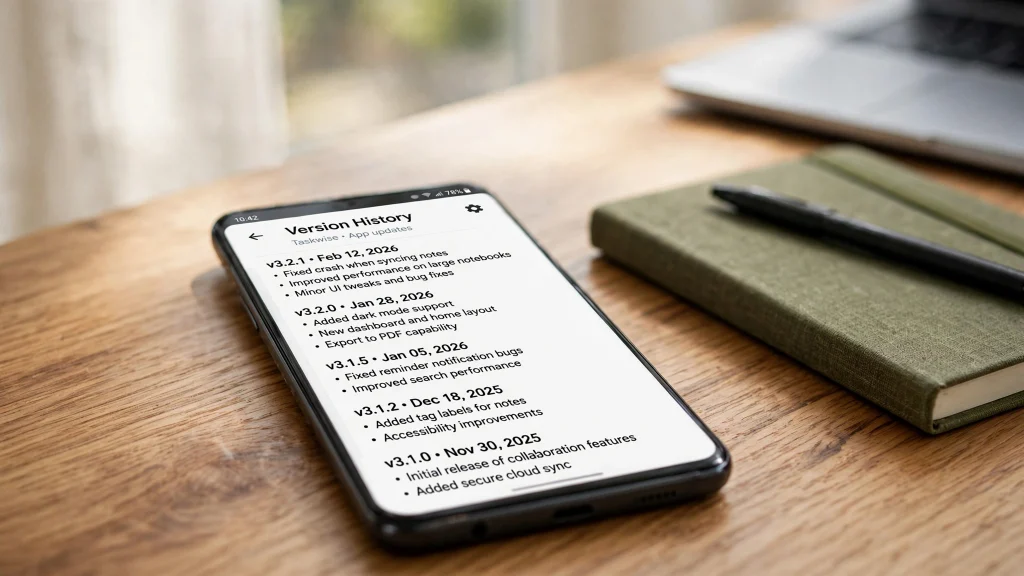
Go to APKMirror and search for the app. Open the app page and look for its list of all versions. That list is the app version history, sorted by date with the newest on top. Pick the last version released before your problems started. Going back one or two versions is usually enough. There is no prize for going back twenty.
The developer’s own website is also worth a look. Some makers keep past releases on a download page. An official page beats any archive when you can find one.
Step 2: Pick the right file
Each release can have several variants. For most modern phones the one marked arm64-v8a is the right pick. A variant marked universal works on any phone. If you are not sure, universal is the safe choice.
Watch the label on the file. Some releases are marked BUNDLE. That is the next step, and it matters.
Step 3: Understand bundle files before you download
Newer apps no longer ship as one single file. They ship in pieces. One piece is the base app. Other pieces carry your language, your screen size and your type of processor. An archive packs those pieces into one bundle file that ends in .apkm.
A bundle will not install with a normal tap. Your phone does not know how to open it. The fix is simple. Get the APKMirror Installer app from the Play Store. Download the bundle, then open it with that installer and follow the steps on screen. It puts the right pieces in for you.
If the release you picked is a plain APK file, skip all of this. A plain file installs the normal way.
Step 4: Check the signature before you trust the file
APKMirror checks every upload before it lists it. The team compares the cryptographic signature on the file with the signature the real developer used on earlier versions. A signature is like a wax seal. If the seal does not match, the file is rejected and never appears on the site. That is why this archive is trusted and random download sites are not.
You still have your part to play. Read our guide on how to check if an APK is safe before you install anything by hand. And never touch files advertised as modded, cracked or premium unlocked. Those are rebuilt by strangers and they are the main way phones get infected.
Step 5: Remove the new version first
This step surprises people. You cannot install the old file over the new one.
Every release of an app carries a version code. It is a plain number and it climbs with each release. Android refuses to install a lower number on top of a higher one. Try it and you will get an “App not installed” error or a note that the install would be a downgrade.
So remove the current version. Open Settings, then Apps, then the app, then Uninstall. This is the step that clears the app’s data. It is also why the backup at the start of this guide matters so much.
Step 6: Install the older file
Open the file you downloaded. Your phone will ask you to allow installs from your browser or file manager. Allow it for this one install. Tap Install and wait for it to finish.
I wrote the full walkthrough of this part in our guide on how to install an APK on Android. It covers the permission, the install itself and switching that permission back off when you are done. Do switch it back off. Leaving it on is an open door you do not need.
A note on keeping your data
Some tech sites suggest a computer trick that pushes the old version in without uninstalling, using a developer tool and a special command. When it works, your data survives. I will be honest with you. On many recent phones it fails, because normal apps are not built to accept it. It also needs a computer, a cable and developer settings turned on. I do not rely on it, and I do not recommend it as the main plan. A backup takes five minutes and works every time.
Stop the App Updating Itself Again
A downgrade means nothing if the Play Store quietly updates the app again tonight. Finish the job here.
Turn off auto update for one app
- Open the Play Store and search for the app.
- Open its store page.
- Tap the three-dot menu in the top corner.
- Untick Enable auto update.
That app now stays on your version until you update it by hand. Every other app keeps updating as normal. This is the setting I use myself.
Turn off auto update for all apps
- Open the Play Store and tap your profile picture.
- Go to Settings, then Network preferences.
- Tap Auto-update apps.
- Choose Don’t auto-update apps.
Think before you pick this one. Now nothing updates on its own, including security fixes for your browser and banking apps. You will have to check for updates by hand every week or two. For most people the one app setting above is the sweet spot.
When a Downgrade Will Not Work
Sometimes you do everything right and the old version still refuses to serve you. There are three common walls.
The first is the server wall. Many apps check in with the maker’s servers when they open, and the server sets a minimum version. Banking apps, chat apps and shopping apps are the strictest. The old version opens to a screen that says you must update to continue, or it lets you in but nothing syncs. No file trick fixes that. The maker has closed the door from their side.
The second wall is your own data. A new version often rewrites its saved data into a newer format the first time it runs. The old version cannot read that format. It may crash on opening until you clear its data from Settings, which means starting fresh anyway.
The third wall is a Google programme called Advanced Protection. If your Google account is enrolled in it, sideloading apps is blocked completely. Method 2 will not work until that changes.
And a word on safety. Old versions miss the security fixes that came later. For a photo editor that risk is small. For anything that holds money or private messages, think twice before you stay on an old version for long.
Stay Safe While You Do This
- Get app files only from the maker or from an archive that checks signatures, like APKMirror. An old version APK from a random site is a gamble.
- Keep Google Play Protect switched on. It scans apps you install by hand too.
- Never install a mod or an unlocked premium version. Those files are rebuilt by strangers.
- Go back one or two versions, not twenty. Very old versions break against today’s servers and miss years of fixes.
- After any install by hand, turn the install permission back off for your browser or file manager.
- Chasing an app that your country’s store does not list at all? That is a region problem, not a version problem. I covered it in our guide on how to download apps not available in your country.
Frequently Asked Questions
Can I downgrade an app without uninstalling it?
Only for apps that came with your phone. Those have the Uninstall updates option, which strips the updates away without a full uninstall. For apps you installed yourself there is no built-in way. Android will not place a lower version over a higher one, so the current version has to come off first.
Will I lose my data if I install an older version?
If the data lives only inside the app on your phone, yes. Uninstalling clears it. Data that is synced to your account, like notes, photos in the cloud or game progress linked to a sign-in, comes back when you sign in again. Back up inside the app before you start and you will lose nothing that matters.
How do I stop one app from updating automatically?
Open the app in the Play Store, tap the three-dot menu on its page and untick Enable auto update. The Play Store will leave that app alone and keep updating everything else. You can still update it by hand whenever you choose.
Why does the old version say I must update to continue?
The maker set a minimum version on their servers. When the old version checks in, the server refuses it. This is common with banking, chat and shopping apps. There is no setting on your phone that changes it. Your only real choices are the current version or a different app.
Is it safe to download an old version APK?
It can be, if the file comes from a source that verifies it. APKMirror checks the developer’s signature on every upload and rejects files that do not match. Random download sites do no such check. Remember also that an old version misses later security fixes, so pick your source well and do not stay on a very old version of a sensitive app.
What is an APKM bundle and why will it not install?
Many new apps ship in pieces rather than one file. The pieces cover the base app, languages, screen sizes and processor types. An archive packs them into one bundle file ending in .apkm. Your phone cannot open that file on its own. Install the free APKMirror Installer from the Play Store and open the bundle with it.
How do I find the version history of an app?
Open the app on APKMirror and look for its list of all versions. Releases are sorted by date and each one shows its version number and upload date. Pick the last release from before your problems started. The developer’s own website sometimes lists past releases too.
Can I get an older version of an app on an iPhone?
Not in any real way. Apple does not let you pick a past version of an app. The App Store offers the current version, and on very old devices it sometimes offers the last version that device can run. That is the whole list of options. Android is the platform where going back is truly possible.