It always happens at the worst moment. You open the camera to record something and the phone stops you cold. Storage full. No photo. No video. Just a warning you have seen ten times before.
I have had that warning on every Android phone I have owned. And for years I did what most people do. I deleted a few photos, felt sad about it, and filled the space again within a month. The photos were never the real problem.
The real problem is the pile you cannot see. Old downloads. App cache. Deleted files that never left. Offline videos inside apps you forgot about. This guide clears that pile in the right order, biggest win first, and your photos stay right where they are.
Quick answer: Open Settings and tap Storage to see what is eating the space. Then work in this order. Run the Clean tab in Files by Google to delete junk files. Empty the Trash, because deleted files sit there for 30 days. Clear the cache of your biggest apps. Remove the local copies of photos that are already backed up. Archive or uninstall the apps you never open. Delete offline downloads inside Netflix, Spotify and Maps. Finish with the Downloads folder. Most people get several gigabytes back in under half an hour, and none of these steps touches a photo you still need.
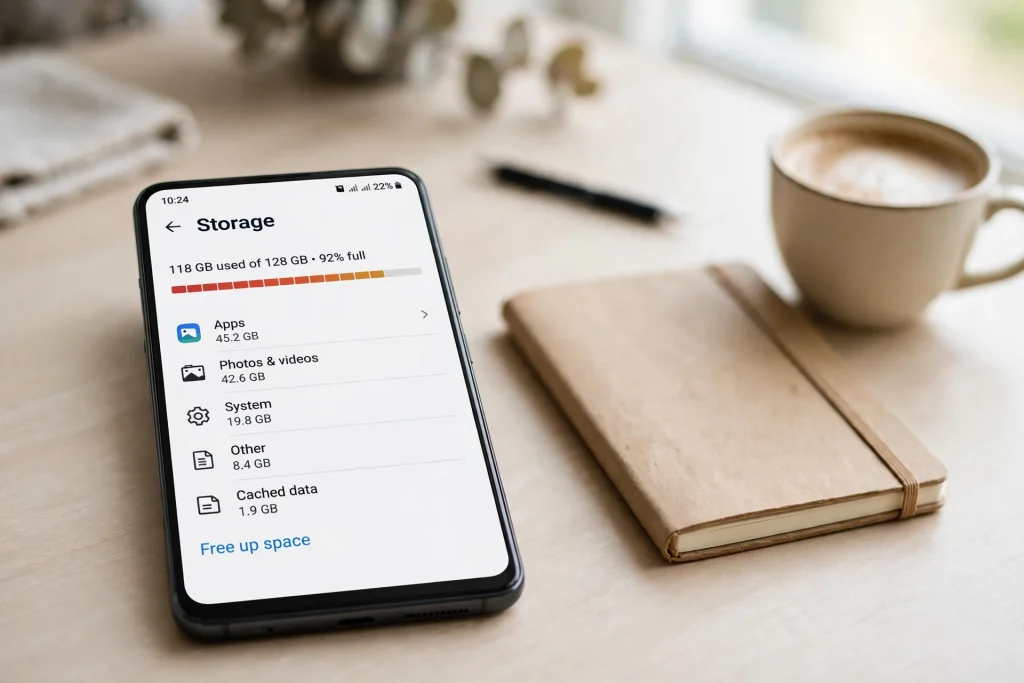
First, See What Is Eating Your Storage
Do not delete anything yet. Two minutes of looking saves you from clearing the wrong thing.
On a Pixel and most Android phones the path is short.
- Open Settings.
- Tap Storage.
- Tap a category to see what sits inside it.
On a Samsung Galaxy the same screen hides one level deeper.
- Open Settings.
- Tap Battery and device care.
- Tap Storage.
You will see the space split into rows. Images. Videos. Apps. Documents. System. And one grey row that confuses everyone, called Other. Note the two biggest rows. Those are where your fix lives. If Apps leads the list, start with Fix 3 and Fix 5 below. If Images and Videos lead, Fix 4 is your big win.
One warning before you trust the numbers. If you deleted files a few minutes ago and the total did not move, restart the phone and look again. The storage screen is slow to catch up.
Why Your Storage Keeps Filling Up
People ask me why their phone storage is always full when they never install anything new. The answer is that your apps work in the background even when you do not.
Every app stores small temporary files as you use it. Your browser saves pieces of every site you visit. Your social apps save every photo and video that scrolls past, so the feed feels fast. Streaming apps keep chunks of what you watched. Chat apps save every picture, voice note and document a group sends you. Updates leave pieces of the old version behind.
None of this asks your permission. It grows a little every day. After a year or two it adds up to more space than your photos ever took. That is the pile this guide removes.
The 9 Fixes at a Glance
| Fix | What it removes | What you lose |
|---|---|---|
| Files by Google Clean tab | Junk files, duplicates, old screenshots | Nothing you need |
| Empty the Trash | Files you already deleted | Your last chance to restore them |
| Clear app cache | Temporary files inside apps | Nothing. Apps rebuild it |
| Remove backed-up photo copies | Local copies of photos safe in the cloud | Nothing. They stay in Google Photos |
| Archive or uninstall apps | Apps you never open | Archived apps return with one tap |
| Delete offline downloads | Films, songs and maps stored inside apps | You download them again if wanted |
| Clean the Downloads folder | Forgotten files and leftover APKs | Nothing you still use |
| Shrink the Other folder | Cache, leftovers and app data | Depends on the step. Read first |
| Turn on the automatic tools | Future clutter before it piles up | Nothing |
My advice is to work down the list in order. Stop when you have enough space back. For most people the first four fixes do the whole job.
Fix 1: Delete Junk Files With the Files by Google Clean Tab
Files by Google is the cleaner I trust, because it is made by Google and it has nothing to sell you. It comes already installed on many phones. If yours does not have it, get it free from the Play Store.
- Open Files by Google.
- Tap the Clean tab at the bottom.
- Work through the cards it shows you.
The cards do the hunting for you. One card holds junk files, the temporary leftovers apps leave behind. Another holds duplicate files. Another holds old screenshots and large files you have not opened in months. There is a card for photos that are already backed up, which Fix 4 covers in full.
Read each card before you confirm. The app shows thumbnails, so you can see what you are deleting. On my last clean this tab alone found leftover install files, a pile of screenshots and two copies of the same large video. Close to 4 GB went in about five minutes.
Fix 2: Empty the Trash
This is the trap that catches almost everyone. When you delete a file on Android, it often does not leave your phone. It moves to a Trash folder and sits there for 30 days. Your space does not come back until the Trash is empty.
There are two Trash folders to check.
In Files by Google, open the menu and tap Trash. Select the items and delete them for good. In Google Photos the same thing lives under Library, then Trash. Photos you backed up can sit in that Trash for up to 60 days.
On a Samsung Galaxy, open Settings, then Battery and device care, then Storage, and look for the Trash or Recycle bin option. Samsung Gallery keeps deleted photos there for 30 days.
Emptying the Trash is permanent, so give it one quick look first. If you deleted a pile of videos last week and wondered why the space never moved, this is your answer.
Fix 3: Clear the Cache of Your Biggest Apps
Cache is the temporary data an app keeps so it loads faster. Your browser cache holds pieces of websites. A video app cache can quietly grow past a gigabyte. Clearing it is safe. The app rebuilds what it needs the next time you open it, and you stay signed in.
There is no one button that clears every app at once. Android removed that years ago. So clear the biggest apps only. Five minutes of tapping beats an hour of small ones.
- Open Settings and tap Apps.
- Tap See all apps, then sort by size if your phone offers it.
- Tap the first big app and open Storage and cache.
- Tap Clear cache.
- Repeat for the next few big apps.
Social apps, browsers and video apps are the usual giants. On my phone the top ten apps held close to 6 GB of cache between them.
Clear cache is not clear data. On that same screen sits a second button called Clear storage or Clear data. That one wipes the app back to the day you installed it. Your logins go. Your downloads inside the app go. Your settings go. Use it only when an app is broken, never as a space fix.
Fix 4: Remove the Local Copies of Photos Already Backed Up
This fix sounds like deleting photos. It is not. It removes the copy on your phone and keeps the copy safe in your Google account. The photo still opens in Google Photos like always. It just streams in instead of living on the device.
First make sure the backup is really finished.
- Open Google Photos.
- Tap your profile picture.
- Check that it says Backup complete. If it is still uploading, wait.
Then take the space back.
- Tap your profile picture again.
- Tap Free up space on this device.
- The app tells you how many items it will remove and how much space you get back. Confirm.
On my last phone this one button returned more space than every other fix combined. Years of photos were sitting on the device twice, once in the gallery and once in the cloud.
Pixel owners get an automatic version of this. Open Settings, then Storage, then Free up space, open the menu and turn on Smart Storage. When the phone runs low, it removes backed-up photos and videos on its own.
One honest note. A free Google account holds 15 GB across Photos, Drive and Gmail. If your backup has stopped because that space is full, this fix cannot help until the backup runs again.
Fix 5: Archive or Uninstall the Apps You Never Open
Every phone I check has the same thing. A dozen apps nobody has opened in months. A game from last year. A scanner app used once. They sit there holding real space.
Android now offers a kinder option than deleting. Archiving an app removes most of its files and keeps your data and its icon. When you want it again, one tap downloads it back and you carry on where you left off. Google says archiving frees up to about 60 percent of the space an app takes.
- Open Settings and tap Apps.
- Open an app you rarely use.
- Tap Archive if your phone offers it, or Uninstall if you are done with it for good.
Then turn on the automatic version so the phone does this itself.
- Open the Play Store.
- Tap your profile picture, then Settings, then General.
- Turn on Automatically archive apps.
From then on, when storage runs low, Android archives the apps you use least. Nothing you open every day is touched.
Fix 6: Delete Offline Downloads Inside Your Apps
Downloads hide in a place the storage screen cannot point at. They live inside the apps that made them, and some of them are huge.
Check these usual suspects.
- Netflix and other video apps. Open the app and go to Downloads. Delete the films and episodes you already watched.
- Spotify and music apps. Downloaded playlists and podcasts add up fast. Remove the ones you no longer play.
- YouTube. Open Library, then Downloads, and clear the videos you saved for a trip that ended months ago.
- Google Maps. Tap your profile picture, then Offline maps, and delete areas you no longer visit. One city map can hold hundreds of megabytes. If you travel a lot, our guide to the best offline maps apps for Android shows how to keep maps small.
- WhatsApp and Telegram. Open Settings inside the app, find the storage section, and look at your biggest chats. One busy group can hold gigabytes of videos you watched once. Telegram also has a cache you can clear on the same screen, and clearing it keeps your chats and the cloud copies safe.
Fix 7: Clean Out the Downloads Folder
The Downloads folder is where files go to be forgotten. PDFs from work. Memes saved twice. Big zip files from a project that ended. And on Android there is one more regular guest.
Every time you install an app from its file, the APK file stays in Downloads after the install. It does nothing there. If you followed our guide on how to install an APK on Android, you may have a few of these sitting around. Delete them. The installed app keeps working.
- Open Files by Google and tap Browse, or open your file manager.
- Open Downloads.
- Sort by size so the big files show first.
- Delete what you no longer need.
Move anything you want to keep but rarely open to a computer with a USB cable. It costs nothing and the space comes back today.
What Is “Other” Storage on Android, and Can You Clear It?
Back to that grey row on the storage screen. Other is not one hidden folder. It is the bucket Android uses for everything that fits nowhere else.
Inside it you will find app cache and temporary files. App data like offline downloads and saved files. Pieces of updates that never cleaned up. And a slice of the system itself, which no one can remove. On a Samsung phone the same files may show under Other, System or both, which is why two phones rarely agree on the number.
So there is no Other folder to delete. You shrink it by doing the fixes above. Clear cache and Other falls. Delete downloads and Other falls. Remove an app and its data leaves Other too. After a full run of this guide, a few gigabytes of Other will still remain. That part is the system, and it is normal. If Other still looks huge after everything, restart the phone and check again. The number is sometimes just stale.
What Not to Do When Storage Is Full
A full phone makes people desperate, and desperate taps cause the real damage. Three things to avoid.
Do not install a random cleaner app. The app stores are full of cleaners that promise one tap magic. Most show ads, ask for permissions they do not need, and clear the same cache you can clear yourself for free. Some are worse than ads. Before you install any tool from outside the Play Store, read our guide on how to check if an APK is safe. Files by Google already does the honest version of this job.
Do not use Clear data as a space fix. I said it in Fix 3 and it bears repeating. Clear cache is safe. Clear data resets the app and signs you out. The two buttons sit side by side and they are not the same thing.
Do not factory reset for space. A reset does free everything, because it wipes the whole phone. It is the right answer for a phone you are selling or one that is truly broken. For a full storage warning it is using a sledgehammer to hang a picture. Every fix above keeps your accounts, your photos and your settings intact.
Keep It From Filling Up Again
Ten minutes of setup now saves you this whole job next year.
- Turn on Smart Storage or auto archive. You did both above. Together they quietly remove backed-up photo copies and shelf the apps you stop using.
- Give chat apps a limit. In Telegram you can set how long cached media stays. In WhatsApp, turn off auto download of videos on mobile data so groups stop filling the phone while you sleep.
- Review Downloads once a month. It takes two minutes when the folder is small. It takes an hour when it is not.
- Use the SD card slot if you have one. Many Samsung and Motorola phones still take a microSD card. Move photos and videos there and set the camera to save new shots to the card.
- Keep a little headroom. Android slows down and updates fail when the last gigabyte is gone. Try to keep at least 1 to 2 GB free at all times. The phone needs working room, not just storage room.
Frequently Asked Questions
Why is my Android storage always full?
Because your apps fill it quietly. Browsers, social apps and streaming apps store temporary files every day. Chat apps save every photo and video a group sends. Updates leave pieces behind. The pile grows even when you install nothing new, which is why a clear-out in the order above works better than deleting a few photos.
How do I free up space on my Android without deleting photos?
Back the photos up first, then remove only the copies on the device. Open Google Photos, wait until it says Backup complete, then tap your profile picture and choose Free up space on this device. The photos stay in your account and still open in the app. They just stop living on the phone.
Is it safe to clear cache on Android?
Yes. Cache is temporary data an app keeps to load faster. Clearing it deletes no photos, no messages and no logins. The app rebuilds the cache as you use it again. It may load a little slower the very next time you open it, and that is all.
What is the difference between clear cache and clear data?
Clear cache removes temporary files only. Clear data wipes the app back to a fresh install. Your accounts, settings and downloads inside that app are deleted. For freeing space, always use Clear cache. Save Clear data for an app that is broken.
How do I clear Other storage on Android?
There is no single Other folder to delete. Other is a mix of app cache, app data, leftovers and system files. It shrinks as you clear app cache, delete downloads, remove unused apps and empty the Trash. A few gigabytes always remain, because part of Other is the system itself.
How do I free up space on a Samsung Galaxy?
The steps are the same, with Samsung menu names. Open Settings, then Battery and device care, then Storage. Empty the Recycle bin inside that screen, because Samsung keeps deleted files for 30 days. Check the Duplicate files and Unused apps suggestions there too. Device care offers the same clean-up cards in one place.
Where is the Downloads folder on Android?
Open Files by Google and tap Browse, or open the file manager your phone came with. Downloads sits near the top. On Samsung phones the app is called My Files. Sort the folder by size and the forgotten big files show themselves at once.
Does emptying the Trash really free up space?
Yes, and this is the step most people miss. Deleted files on Android usually move to a Trash folder and stay there for 30 days. Google Photos can hold them for up to 60 days. Until you empty the Trash, the space those files used is still taken. Emptying it is permanent, so check the contents once before you confirm.
How much free space should I keep on my phone?
Keep at least 1 to 2 GB free if you can. Android needs working room to run updates, store fresh cache and save new photos. When a phone drops below that line, updates fail, apps stutter and the camera starts refusing to record. A little headroom keeps all of that away.