Last month I wanted an app that is not on the Play Store. It is a small open source app and the makers only share it through F-Droid. So I downloaded the file to my phone and tapped it. My phone stopped me cold. It told me the install was blocked for my own safety.
That warning looks scary the first time you see it. It is not. Your phone is just asking if you really mean to install something from outside the Play Store. Once you know where the setting lives the whole thing takes about a minute.
This guide walks you through it on modern Android phones and on older ones too. I will also show you how to turn the permission back off when you are done. That last part matters more than people think.
Quick answer: Open the APK file on your phone. When Android asks for permission give it to the one app you are installing from. That is usually your browser or your file manager. Tap Install and the app lands on your phone like any other app. When you finish go back and switch that permission off again. The whole job takes about a minute.
What Is an APK File?
An APK is simply the install file for an Android app. Think of it as the box the app arrives in. Every app on the Play Store is an APK too. The only difference is that the Play Store opens the box for you behind the scenes. When you download an APK yourself you open the box by hand. The app inside is the same kind of app you already use every day.
People install APK files for normal reasons. Some great apps live outside the Play Store. Open source apps are the big one. And sometimes you just want an older version of an app that worked better for you.
Before You Start
You need two things. The APK file itself saved on your phone. And a little space free for the app to install. That is all.
One habit worth building now. Only install files you got from a place you trust. I get mine from F-Droid or from the official page of the app itself. A file from a random site is a gamble and not one worth taking. More on that at the end of this guide.
How to Install an APK on Android 8 and Later
Modern Android handles this in a smart way. You do not open your whole phone to outside apps. You give permission to one app only and only for this job. Here is the flow on most phones.
Step 1: Download the APK file
Use your browser and download the file from the source you trust. When the download finishes you will see it in your notifications. You can also find it later in your Downloads folder.
Your browser may warn you that this type of file can harm your device. That is a standard warning Android shows for every APK download. It shows even for perfectly good files. If you trust your source you can keep the file.
Step 2: Open the file
Tap the finished download. Or open your file manager and tap the file in Downloads. Android will now stop and ask for permission. The message says your phone is not allowed to install unknown apps from this source.
Step 3: Allow install from this source
Tap Settings on that message. You land on a screen with a switch that says Allow from this source. Turn it on. This gives your browser or your file manager the right to install this one file. It does not open your phone to every app on the internet.
Step 4: Go back and tap Install
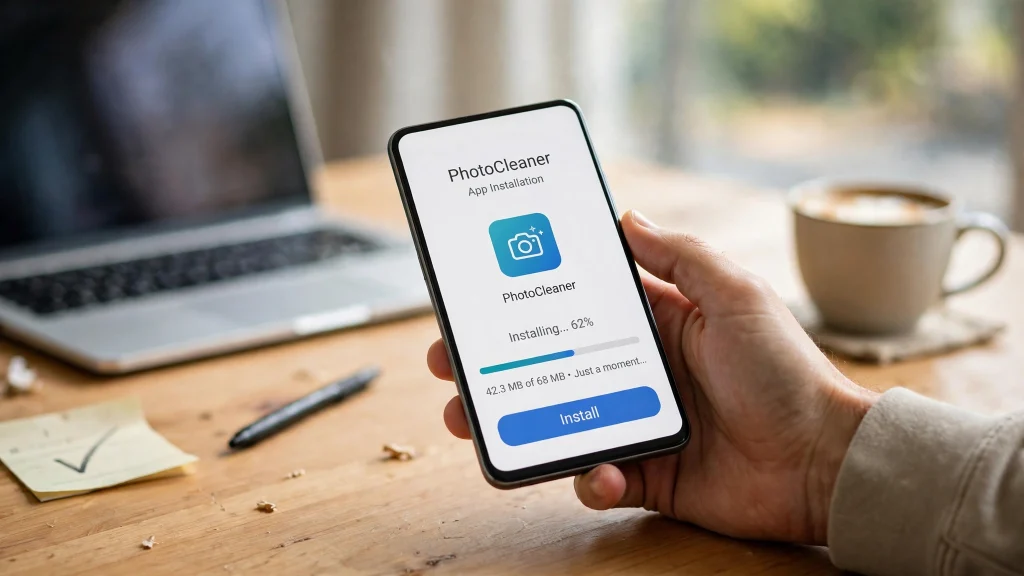
Press back once. The install screen is waiting for you. Tap Install. A few seconds later the app is on your phone. You can open it right away or find it later in your app list with everything else.
Step 5: Turn the permission back off
This is the step most guides skip. Go to your phone Settings. Open Apps. Look for Special app access and then Install unknown apps. Pick the app you just allowed. Switch the permission off.
Why bother? Because that permission stays on until you remove it. Any file that app hands to the installer later gets an easier ride. Turning it off takes twenty seconds and keeps your phone the way it was.
Installing on a Samsung Phone
Samsung phones follow the same idea. The screens just wear different clothes. One UI puts the permission in almost the same place with a slightly different path.
Download the file and tap it. Samsung shows a message saying the app you used is not allowed to install other apps. Tap Settings on the message. Turn on the switch for that app. Go back and tap Install.
If you ever need to find the setting by hand open Settings. Go to Apps. Tap the three dots in the corner and choose Special access. Then tap Install unknown apps.
One Samsung extra. Galaxy phones also run a feature called Auto Blocker. If it is on it can stop sideloading completely. You will find it under Settings and then Security and privacy. If your install will not start at all this is the first place I would look.
The Older Way: Android 7 and Below
Old Android worked differently. There was one master switch for the whole phone. It lived under Settings and then Security. It was called Unknown sources. You turned it on and any APK on the phone could install.
If you still use a phone that old the flow is simple. Turn on Unknown sources. Open the file. Tap Install. Then turn the switch off again the moment you finish. That last step matters even more here because the old switch opens the door for every app at once.
Installing With a File Manager
Maybe you downloaded the file days ago. Or a friend sent it to you through a cable or a memory card.
Open the file manager that came with your phone. Most are called Files or My Files. Go to Downloads or to the folder where the file sits. Tap the APK. From here the steps are the same as above. Android asks for permission for the file manager this time. Allow it. Install. Then switch the permission off when you are done.
I use this route a lot for open source apps. I keep a small folder of files I trust and install from there when I set up a new phone.
What If Play Protect Blocks the Install?
Sometimes you do everything right and the install still stops. A Play Protect message appears and says the app looks harmful or that the install is blocked.
Here is what that warning actually means. Play Protect is the built in scanner from Google. It checks apps against what Google knows. A block can mean the app is genuinely bad. It can also mean the app is simply unknown to Google. Small open source apps trip this a lot because their files never went through the Play Store.
Read the message closely. If it names a real threat or says the app tries to steal data take that seriously. Delete the file. Do not look for a way around it.
If the warning is the softer kind and you got the file from a source you trust there is usually a Details option. It lets you choose Install anyway. I only ever use that for files from F-Droid or the official maker of the app. If a random site gave you the file this warning is doing you a favour. Listen to it.
And if Play Protect later tells you to remove an app you installed do not ignore that either.
How to Uninstall the App Later
An app installed from an APK uninstalls like any other app. Nothing special is needed.
Press and hold the app icon. Tap Uninstall. Or go to Settings and then Apps. Pick the app and tap Uninstall there. The app and its space on your phone are gone.
One small note. Apps installed by hand do not update through the Play Store. If the app came from F-Droid then F-Droid updates it for you. For any other file you install the new version the same way and it replaces the old one. Your data stays in place.
Stay Safe: Only Install Files You Trust
Installing an APK is not risky by itself. The file source is where the risk lives.
Stick to sources with a real name behind them. F-Droid checks the apps it lists. The official website of the app is a good source. Well known open source projects are a good source. A site you never heard of that promises every paid app for free is not a source. It is a trap.
That last one deserves a plain word. Paid apps given away free as APK files are pirated. Many of them carry malware tucked inside. The free game is not worth a stolen account or a phone full of ads you cannot remove.
One change is on the way. Google is adding developer verification for Android apps. It started on 30 September 2026 in Brazil, Indonesia, Singapore and Thailand, and it covers apps from participating stores. Google has confirmed the rollout expands globally starting in January 2027, beginning with the participating app stores first and expanding gradually to more countries and sources afterward. Direct APK downloads are not covered yet and have no firm date. For now, installing an APK the way this guide shows works exactly the same.
Before you install anything new it is worth learning how to check if an APK file is safe so you can spot a bad file before it ever touches your phone.
My own rule is simple. If I cannot name who made the file and where they shared it I do not install it. That one rule has kept every phone I own clean.
Frequently Asked Questions
Is installing an APK legal?
Yes. Installing apps from outside the Play Store is a normal Android feature. Google built the setting into the phone. What is not legal is using pirated copies of paid apps. Stick to free apps and open source apps from trusted sources and you are fine.
Why does my phone say install blocked?
Your phone blocks installs from outside the Play Store until you allow them. Give the install permission to the one app you are using. That is your browser or your file manager. Then try again. On Samsung phones also check that Auto Blocker is not stopping you.
Is it safe to install APK files?
It depends on the file and where it came from. A file from F-Droid or the official page of the app is as safe as apps get. A file from a random download site can carry malware. The install steps are the same either way. The source is what makes it safe or risky.
Can I install an APK on an iPhone?
No. APK files are for Android only. iPhones use a different system and Apple does not allow this kind of install. If you have an iPhone your apps come from the App Store.
Do APK apps update automatically?
Not through the Play Store. If you installed the app from F-Droid then F-Droid can update it for you. For a file you installed by hand you download the newer file and install it over the old one. Your settings and data carry over.