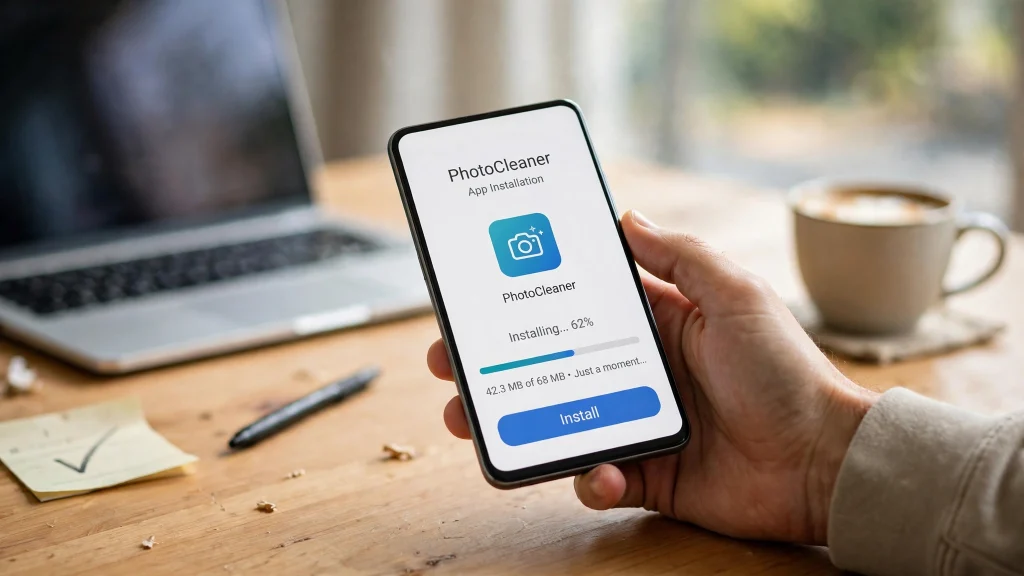
A friend sent me an APK file last month. He said it was a photo editor that everyone was using. The file sat in my downloads folder for two days. I kept looking at it and thinking the same thing. Is this thing actually safe?
That question is a good one. An APK is just an app in file form. When you install one by hand you skip the Play Store and its review process. Nobody checked that file for you. So the checking falls on you.
The good news is that checking is not hard. I run through five checks before I install anything from outside the Play Store. They take a few minutes. They have saved me more than once.
Quick answer: Start with the source. A file from the developer or a trusted store like F-Droid is a much safer bet than a file from a random download site. Then scan the file on VirusTotal for free. Compare the signature or checksum if the developer publishes one. Read the permissions and walk away from anything silly. And match the version and file size against the official page. If a file fails a couple of these checks I do not install it.
Why This Question Matters More Than It Used To
Most apps people install come from the Play Store. Google scans those apps before and after they go live. The system is not perfect but it catches a lot.
A file you install by hand gets none of that. It can be a real app. It can also be a real app with something nasty tucked inside. The icon looks the same. The name looks the same. Your phone cannot tell the difference just by looking.
This is why sideloading has a reputation problem. The act itself is fine. Developers do it. I do it. The risk lives in the file and where it came from. So let us look at the file properly.
Check 1: Where Did the File Come From?
This is the check that matters most. Honestly it matters more than all the others combined.
Some sources have a pattern you can trust. The official website of the developer is one. F-Droid is another. It only carries open source apps and it builds them from the published code. The project page on GitHub is also a good sign. Developers post their real releases there.
Some sources have the opposite pattern. Random file host sites with five download buttons are a bad sign. Four of those buttons are ads or worse. Mod APK sites are worse still. A mod is a paid app that someone opened up and changed. You have no idea what else they changed while they were inside.
My rule is simple. If I cannot name who published the file I do not trust the file. A real developer puts their name on their work. Anonymous uploads ask you to trust a stranger with your whole phone.
If the source passes and you decide to go ahead then it pays to install the safe way too. I wrote up the full process in my guide on how to install an APK on Android the safe way and it walks through the settings step by step.
Check 2: Scan the File on VirusTotal
This is my favourite check because it is free and it takes one minute.
VirusTotal is a website owned by Google. You open it in your browser. You upload the APK file. The site runs the file past dozens of antivirus engines and shows you the score. No account needed for a basic scan.
How to read the result
The result page shows how many engines flagged the file. Here is how I read it in plain words.
Zero detections is the result you want. It means none of the engines found anything they recognise as malicious. That is a strong good sign. It is not a legal guarantee but it is the best quick answer you can get.
One or two detections on an unknown app is a grey zone. Small engines sometimes flag new or unusual apps by mistake. This is called a false positive. It happens a lot with apps that use aggressive ads. I look at which engines flagged it. Big names carry more weight than ones I have never heard of.
Many detections is a stop sign. If ten or twenty engines agree the file is bad then the file is bad. Delete it. Do not talk yourself into it.
One more thing worth knowing. A clean scan today is about today. New malware takes time to get recognised. That is why the scan is one check and not the only check.
Check 3: Compare the Signature or Checksum
This one sounds technical. The idea behind it is simple.
Every real app is signed by its developer. Think of the signature like a wax seal on a letter. If someone opens the app and changes something inside the seal breaks. Android itself uses this. It will not let a changed app update over the original because the signatures will not match.
Some developers also publish a checksum on their download page. A checksum is a long string of letters and numbers made from the file itself. Free tools on your computer can make the same string from your downloaded copy. If the two strings match your file is the exact file the developer released. If they differ by even one character the file was changed.
You will not do this check for every app. Most people never do it. But for a banking tool or a password manager or anything sensitive it is worth the five minutes. The developer page usually labels it clearly when they offer one.
Check 4: Read the Permissions Like a Detective
Before an app installs Android shows you what it wants access to. Most people tap through this screen. Slow down here. This screen tells you a story.
Ask one question for every permission. Does this app need this to do its job?
A maps app asking for your location makes sense. A music player asking for storage makes sense. A flashlight app asking for your contacts makes no sense at all. A wallpaper app asking to read your text messages makes no sense. A simple game asking for permission to make phone calls makes no sense.
Nonsense permissions usually mean one of two things. The app is stuffed with ad software that harvests data. Or the app is not really the app at all.
You can also check permissions after install in your phone settings. If an app you already use asks for something new after an update that is worth a look too. I check mine every few months. It takes two minutes and it is weirdly satisfying.
Check 5: Match the Version and Size With the Official Page
This check catches lazy fakes and it takes thirty seconds.
Open the official page for the app. The developer site or the F-Droid page or the Play Store listing. Note the current version number and the rough file size. Now look at your file.
If the official app is version 8.2 and your file claims to be version 9.5 from nowhere that is a lie. Newer than official does not exist in the wild.
Size matters too. If the real app is around 40 megabytes and your file is 6 megabytes you do not have the real app. You have something else wearing its name. Attackers keep files small because small files spread fast in group chats.
The reverse can happen too. A file far bigger than the official one may be carrying extra luggage. Either way a big mismatch is a reason to stop.
Red Flags That Should Stop You Cold
Some files fail before any checking starts. Here is my personal stop list.
A mod version of a paid app offered for free. Someone rebuilt that app and you cannot see what they put inside. The saving is a few dollars. The risk is your accounts.
Any app promising free money or free followers or free game currency. This is the oldest bait on the internet. The app is the product and your phone is the payment.
A file that arrives out of nowhere in a group chat with no sender willing to say where it came from. Forwarded ten times means checked zero times.
A download page that opens pop ups and fake virus warnings. Pages like that are telling you who they are. Believe them.
An app name that is almost right. One letter off from a famous app is a classic trick. Read names slowly.
My Honest Rule When I Am Not Sure
Here it is and it has never failed me. When in doubt do not install it.
There is no app so important that it cannot wait a day. The real version will still exist tomorrow on an official page. The fake one is counting on you hurrying.
Your phone holds your photos and your messages and your bank logins and your whole digital life. A photo editor from a stranger is not a fair trade for any of that. Run the checks. Trust the pattern they show you. And let the doubtful ones stay in the downloads folder until they get deleted.
Frequently Asked Questions
Can an APK contain a virus?
Yes it can. An APK is a full app package and a malicious one can carry harmful code just like a bad program on a computer. That is the whole reason for checking the source and scanning the file before you install it.
Is VirusTotal enough to prove an APK is safe?
No single check proves it. A clean VirusTotal result is a strong good sign because dozens of engines looked and found nothing. But new threats take time to be recognised. I treat the scan as one of five checks and not the whole answer.
Are APKs from APKMirror safe?
APKMirror is one of the better known sources because it verifies that uploads are signed by the original developer. That signature check is a real safeguard. Even so I still scan files and compare versions out of habit. Trust is good. Verification is better.
What permissions should an APK never need?
It depends on the app but some asks are almost always wrong. A flashlight or wallpaper app should never need your contacts or messages. A simple offline game should not need to make calls or track your location. When a permission has nothing to do with the job of the app treat it as a warning.
Is it illegal to install an APK?
No. Installing apps you have the right to use is legal and Android allows it openly. The legal problems start with pirated apps and mod versions of paid apps. Files from the developer or from open source stores keep you on solid ground.